 bibleit
BIBLEIT / Documentation
Guides
Practical workflows for your library, presentations, and team. Each guide starts with what you need and ends with what you should see.
TRANSLATIONS
Build your Scripture library
Open to browse the catalog by language and add the versions you use. A server stores translation data once; your account library chooses which translations are available to you.
Translation identifiers are case-insensitive. Reads, searches, and Lives can use only translations enabled for the active account.
Bibleit lists only translations recorded as public domain in its local rights catalogue. Each entry shows its source and public-domain evidence before it can be enabled. Where an entry has a reviewed source archive, Bibleit installs that exact source locally and records its SHA-256; it does not serve Scripture from Bolls, YouVersion, or API.Bible. A catalog entry without a reviewed import source must be imported locally by a maintainer before it can be enabled.
SCRIPTURE READER
Read, compare, and search locally installed translations
Open to read an enabled translation, jump to a reference, or search its local text index. Choose a second translation to read the same passage side by side; the Reader keeps the selected comparison in its URL so the view survives a refresh.
Use the swap control between the two panes to exchange their positions. Click a verse to copy it. The Reader also supports ←/→ for chapters, ↑/↓ for verses or search results, number keys to jump to a verse, S to focus search, C to clear search, F for full screen, and H to collapse the left navigator.
LIVE WORKFLOW
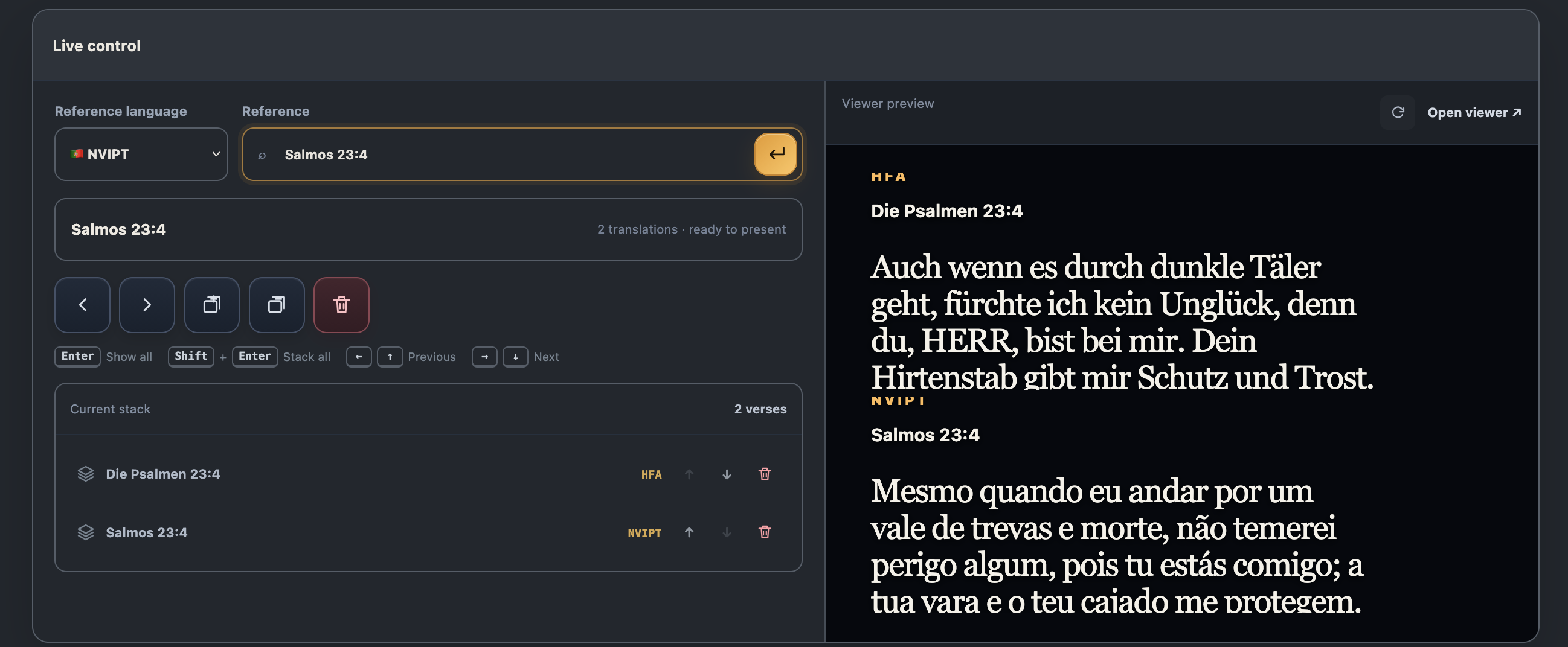
Search, preview, and present
Choose translations
Select the translations that should be shown together for each reference.
Find a reference
Type a book, chapter, or verse. Show it immediately or add it to the retained stack.
Open the viewer
Share the viewer URL and use Preview to verify exactly what connected viewers see.
Sharing and protected Lives
The viewer link is for your audience. A collaboration invitation grants another account access to the controller; review the recipient and permission before inviting. For protected Lives, configure a Live secret and share it only with the intended audience.
Present with a team
Create an organization or accept an invitation. Select the organization workspace before managing its library and Lives. Organization Lives belong to the workspace and remain when a member leaves. Personal account limits and organization capacity are separate.
Owners and admins manage members and roles. Operators create and control Lives within their assigned limits. Viewers have read-only access. Invite someone from workspace settings; they review and accept the invitation using their own account.
Explore Organizations →Live Design
An owner or admin can open Live Design from the organization navigation. Adjust the preview, save the design, then check an organization viewer. The saved design applies to all organization Lives and updates connected viewers without clearing the verse.
Authentication
Browser sign-in creates a browser session. HTTP integrations use revocable access tokens. SSH uses a public key registered in Settings → SSH keys; your private key stays on your device. These credentials are separate and cannot replace one another.
Authentication →